


7 Segment Display Interfacing with Arduino is easy and fun to learn topic due to its versatile use in the electronics industry because of its ease of use and readability to display numeric data in devices such as calculators, digital clocks, and measuring instruments. In this blog post, we will learn how to interface a 7 segment display with an Arduino board.
Components Required:
To interface a 7-segment display with an Arduino, you will need the following components:
- Arduino Board (UNO, Nano )
- Breadboard
- 7 segment display
- 220Ω Resistor (7)
- Jumper Wires
How 7 Segment Display Works:
A 7 segment display consists of seven individual LED segments arranged in the shape of a digit eight, with one additional segment used for a decimal point. Each segment is numbered from a to g and can be turned on or off to create any number between 0 and 9. By controlling each segment of the display, we can display any number or character we want.
Types Of 7 Segment Displays:
Interfacing Common Cathode
The first step in interfacing a Common Cathode 7-segment display with an Arduino is to connect the display to the Arduino board. Here’s how you can do it:
- Connect the common cathode (-) pin of the 7-segment display to the GND pin of the Arduino.
- Connect the a, b, c, d, e, f, and g pins of the 7-segment display to digital pins 8, 9, 10, 4, 5, 7, and 6 of the Arduino, respectively.
- Connect a 220Ω resistor between each of the Arduino digital pins and the respective segment of the display.

Read More: Fun With Arduino and Buzzer: Basic, Siren, Morse, Melody
Code & Simulation:-
#define A 8 // Pin 8 of Arduino To A Segment of 7-Segment Display
#define B 9 // Pin 9 of Arduino To B Segment of 7-Segment Display
#define C 10 // Pin 10 of Arduino To C Segment of 7-Segment Display
#define D 4 // Pin 4 of Arduino To D Segment of 7-Segment Display
#define E 5 // Pin 5 of Arduino To E Segment of 7-Segment Display
#define F 7 // Pin 7 of Arduino To F Segment of 7-Segment Display
#define G 6 // Pin 6 of Arduino To G Segment of 7-Segment Display

void setup() {
  pinMode(A, OUTPUT);
  pinMode(B, OUTPUT);
  pinMode(C, OUTPUT);
  pinMode(D, OUTPUT);
  pinMode(E, OUTPUT);
  pinMode(F, OUTPUT);
  pinMode(G, OUTPUT);
}

void loop() {
  digitalWrite(A, HIGH);
  digitalWrite(B, HIGH);
  digitalWrite(C, HIGH);
  digitalWrite(D, LOW);
  digitalWrite(E, LOW);
  digitalWrite(F, LOW);
  digitalWrite(G, LOW);
}- In the above code, we have defined the pins used for each segment and set them as output in the
setupfunction.
- In the
loopfunction, we have turned on theA,B, andCsegments, and turned off theD,E,F, andGsegments to display the number 7. - The segments to be turned on are set
HIGHfor common cathode configuration
Simulation Common Cathode:
Interfacing Common Anode
The first step in interfacing a Common Anode 7-segment display with an Arduino is to connect the display to the Arduino board. Here’s how you can do it:
- Connect the common anode (+) pin of the 7-segment display to the +5v pin of the Arduino with a resistor in series.
- Connect the a, b, c, d, e, f, and g pins of the 7-segment display to digital pins 8, 9, 10, 4, 5, 7, and 6 of the Arduino, respectively.
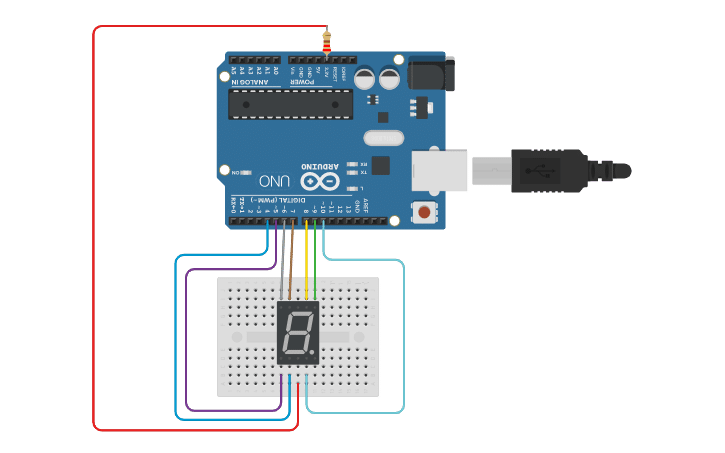
Read More: What Is Electronics: Interactive Presentation
Code & Simulation:-
#define A 8 // Pin 8 of Arduino To A Segment of 7-Segment Display
#define B 9 // Pin 9 of Arduino To B Segment of 7-Segment Display
#define C 10 // Pin 10 of Arduino To C Segment of 7-Segment Display
#define D 4 // Pin 4 of Arduino To D Segment of 7-Segment Display
#define E 5 // Pin 5 of Arduino To E Segment of 7-Segment Display
#define F 7 // Pin 7 of Arduino To F Segment of 7-Segment Display
#define G 6 // Pin 6 of Arduino To G Segment of 7-Segment Display

void setup() {
  pinMode(A, OUTPUT);
  pinMode(B, OUTPUT);
  pinMode(C, OUTPUT);
  pinMode(D, OUTPUT);
  pinMode(E, OUTPUT);
  pinMode(F, OUTPUT);
  pinMode(G, OUTPUT);
}

void loop() {
  digitalWrite(A, LOW);
  digitalWrite(B, LOW);
  digitalWrite(C, LOW);
  digitalWrite(D, HIGH);
  digitalWrite(E, HIGH);
  digitalWrite(F, HIGH);
  digitalWrite(G, HIGH);
}- In the above code, we have defined the pins used for each segment and set them as output in the
setupfunction.
- In the
loopfunction, we have turned on theA,B, andCsegments, and turned off theD,E,F, andGsegments to display the number 7. - The segments to be turned on are set
LOWfor common anode configuration.
Simulation Common Anode:
Summary
Interfacing a 7 segment display with an Arduino is an easy and fun way to learn about basic electronics and programming. In this blog post, we have learned how to connect a 7-segment display to an Arduino board and display a number on it. With this knowledge, you can start exploring more complex projects and applications that use 7 segment displays.


